 FileToast
Assemble a cover sheet and a three-page sample report into one document. The steps below follow generated sample files through the working FileToast tools. The screenshots come from those runs, so they show the controls and downloads used for this example.
Before you start
Keep the original input. Work on a copy when page order, identifiers, or formatting matter. All steps in this walkthrough use browser-local processing. File contents do not need to be uploaded to FileToast. The example is intended to make the settings easy to follow; it is not a promise that every complex document will behave identically.
Merge PDF
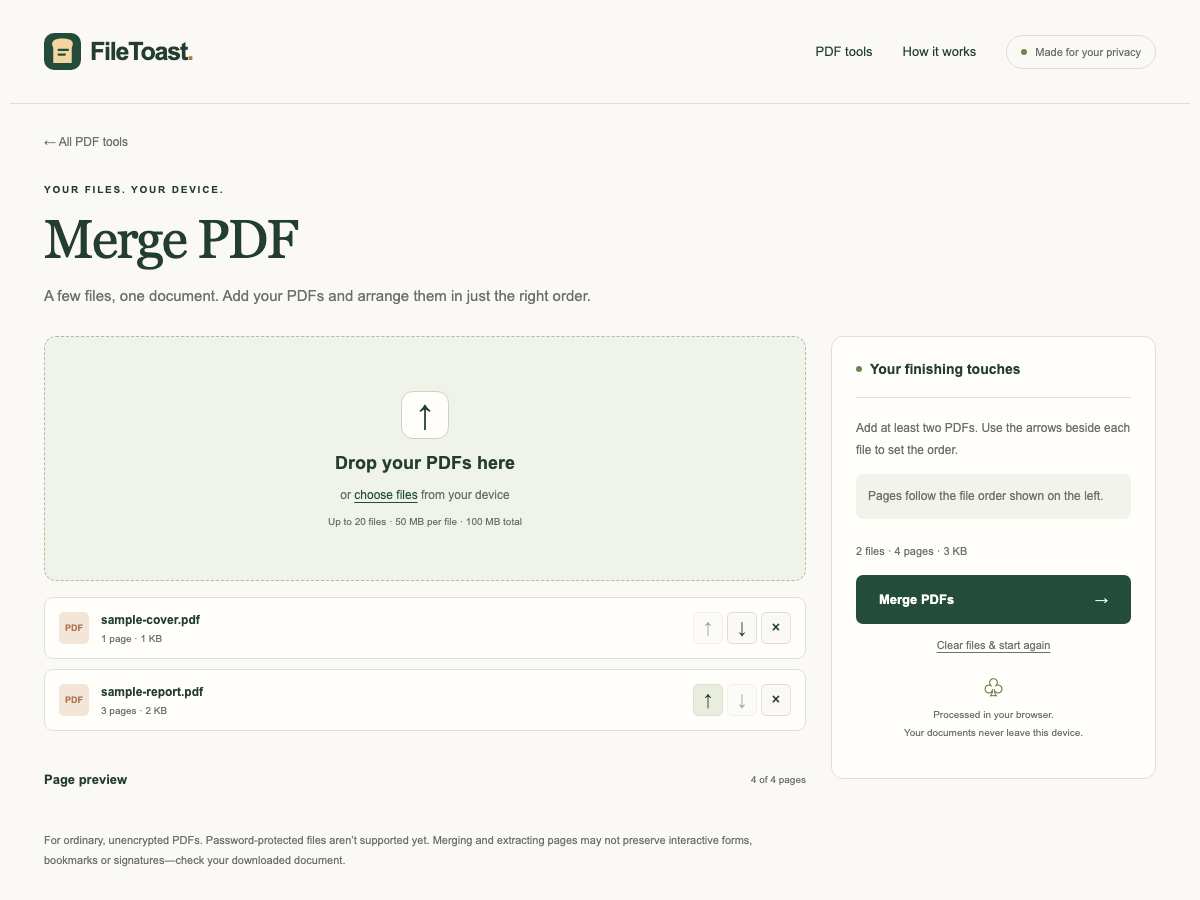
- Open Merge PDF. Choose sample-report.pdf and sample-cover.pdf. These are generated demonstration files, not customer records.
- Use the file-order arrow to move the last sample file ahead of the first one. Check the visible list before processing.
- Choose Merge PDFs to run the operation locally in the browser.
- Download the output and inspect it. For PDFs, open the downloaded document and check its pages, orientation, text, and any form information that matters.
What the result looked like
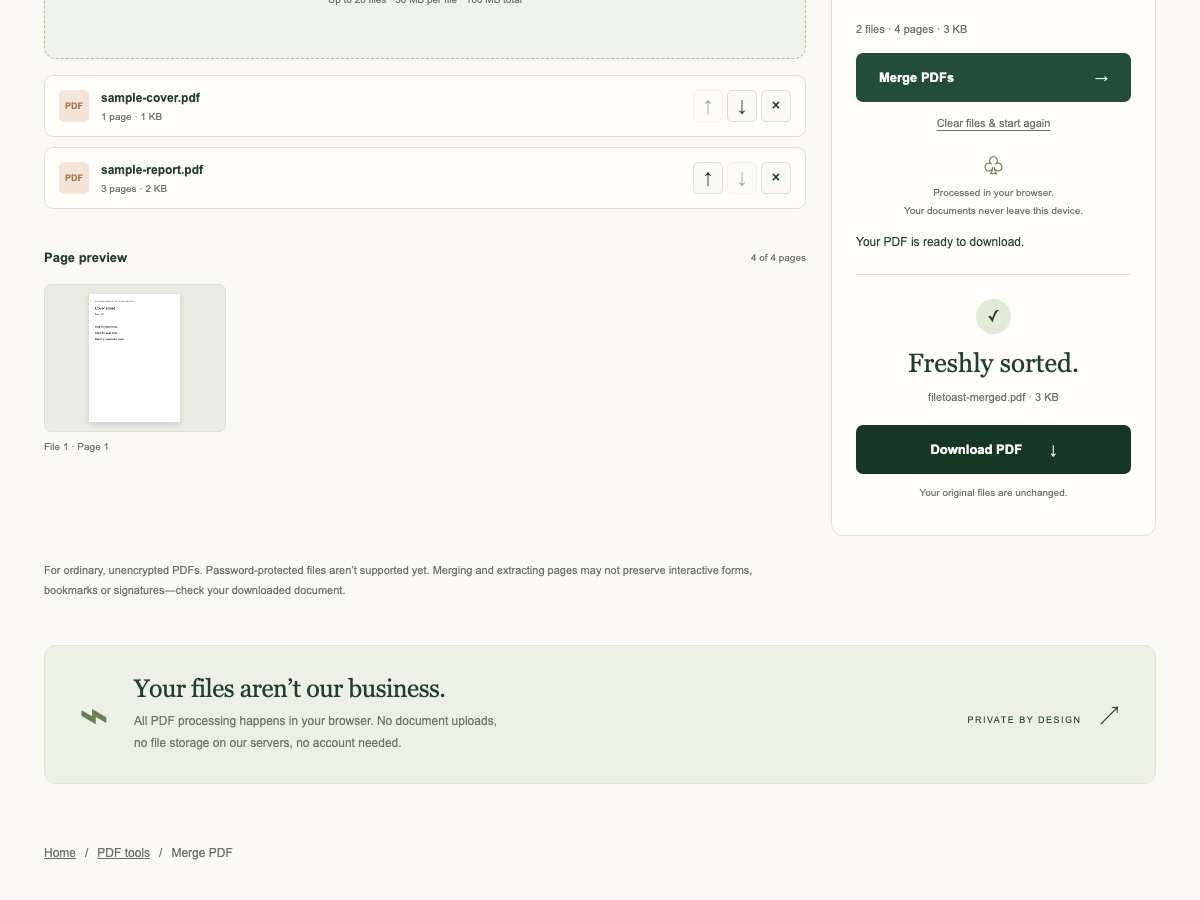
The downloaded PDF contained 4 pages. The page count was checked by opening the generated PDF, rather than relying only on the download button. The download was named filetoast-merged.pdf and measured approximately 3 KB. Different input files can produce different sizes and layouts.
Checks that matter for this task
Your original files are unchanged. Keep a copy and check the downloaded result before relying on it.
Check whether the source contains interactive fields or a digital signature. Editing a PDF can change those features even when the visible pages look correct.
Try the tools
Merge PDF. For another task, return to the FileToast tool directory.