 FileToast
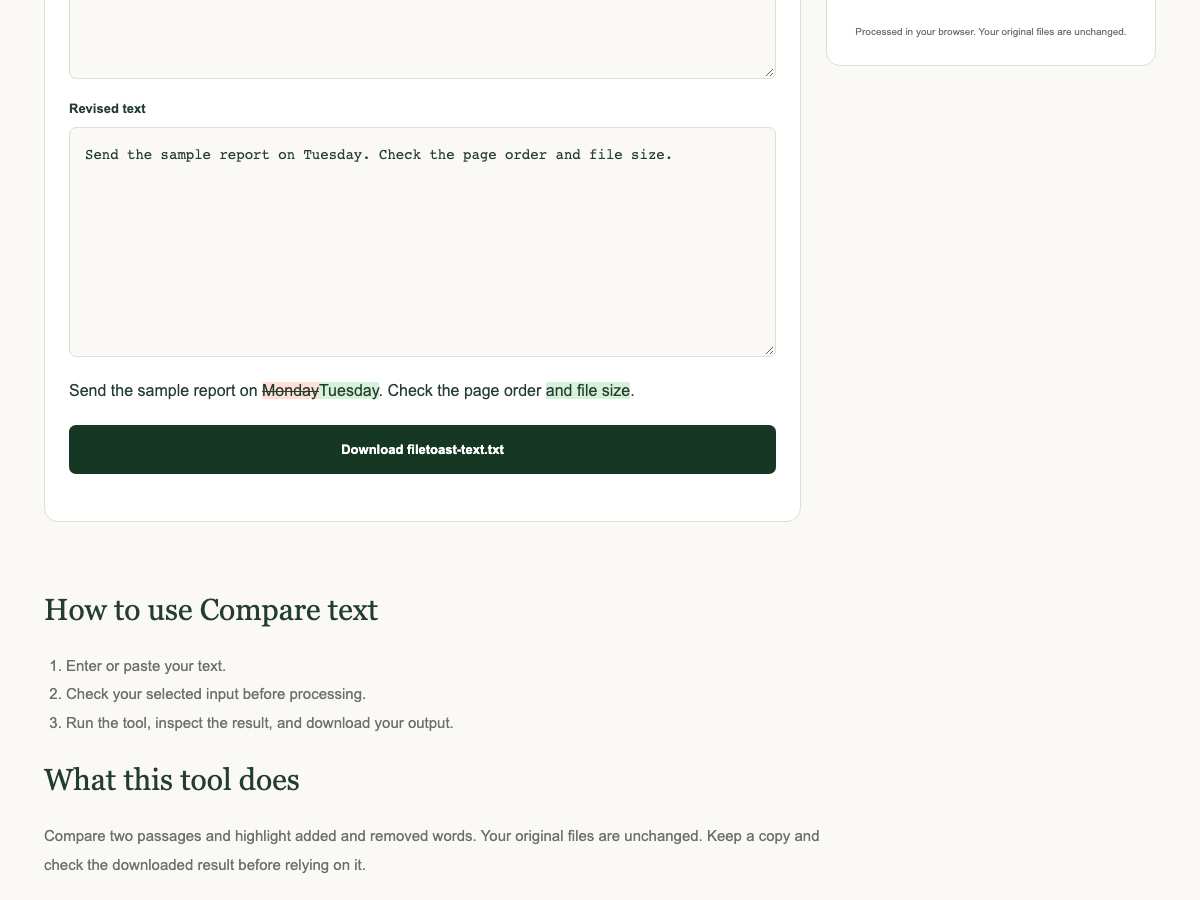
Highlight a changed deadline and an added checklist item in sample text. The steps below follow generated sample files through the working FileToast tools. The screenshots come from those runs, so they show the controls and downloads used for this example.
Before you start
Keep the original input. Work on a copy when page order, identifiers, or formatting matter. All steps in this walkthrough use browser-local processing. File contents do not need to be uploaded to FileToast. The example is intended to make the settings easy to follow; it is not a promise that every complex document will behave identically.
Compare text
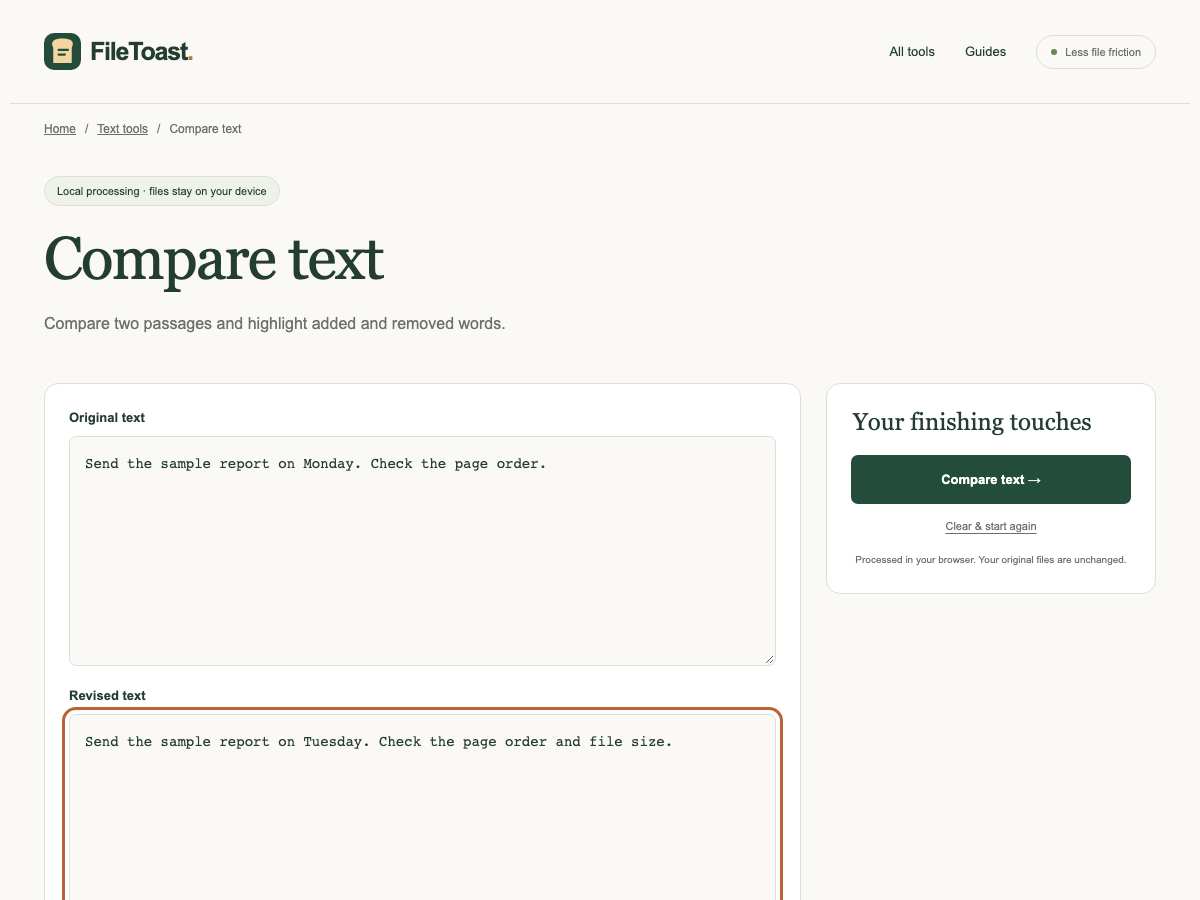
- Open Compare text. Paste the sample text into the input area. If comparing text, put the revised passage in the second box.
- Review the selected inputs and set the controls shown below. Use the screenshot to match the example, rather than assuming a default setting is unchanged.
- Choose Compare text to run the operation locally in the browser.
- Download the output and inspect it. Keep the original input and check the downloaded copy before using it elsewhere.
What the result looked like
The downloaded TXT file contained 76 characters in this sample run. The download was named filetoast-text.txt and measured approximately 1 KB. Different input files can produce different sizes and layouts.
Checks that matter for this task
Your original files are unchanged. Keep a copy and check the downloaded result before relying on it.
If a setting produces an unexpected result, start again from the original input and change one setting at a time. This makes it easier to identify which choice affected the output.
Try the tools
Compare text. For another task, return to the FileToast tool directory.